Notebook thumbnails
Choose Gallery on the project page. The hub remembers your view. A notebook and its app share one thumbnail.
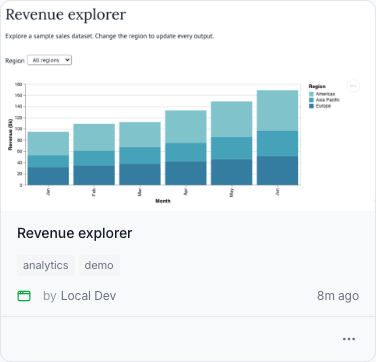
Use a screenshot
- Capture the notebook or app area you want to show:
- Mac: ⇧⌘4 selects an area. Hold Control to copy it.
- Windows: Win+Shift+S selects and copies an area.
- Choose Edit thumbnail from the notebook actions menu. On the notebook page, click the notebook title to open that menu.
- Choose Upload image, drop an image, or paste with ⌘V or Ctrl+V.
- Adjust the crop in the preview.
- Select Save thumbnail.
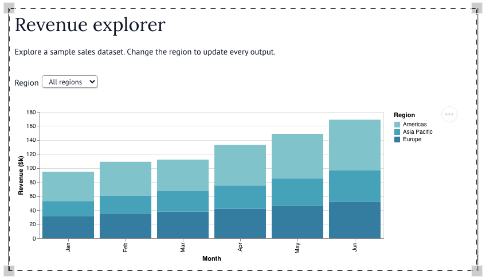
Editors and higher roles can use PNG, JPEG, or WebP files up to 10 MB. Images must fit within 32 megapixels and 16,384 pixels per side. Animated WebP is not supported. The hub uploads only the cropped image. Uploads and cropping work without Playwright. Your thumbnail is visible to people who can view this notebook.
Custom thumbnails take precedence. Remove custom thumbnail shows the automatic image or, if none exists, a placeholder.
Automatic previews
The hub attempts one preview from saved HTML only at local notebook editor shutdown. It skips unchanged HTML and custom thumbnails, and never runs notebook code. Periodic saves and gallery visits never generate previews.
Capture requires preinstalled Python Playwright and Chromium in the Linux or macOS sandbox. The environment must support Chromium's sandbox. On Linux, Chromium needs a non-root user and compatible user-namespace and seccomp policies. If Chromium cannot start with its sandbox, capture fails without a fallback to unsandboxed rendering. Capture takes at most 10 seconds, within the shutdown budget. Missing dependencies, missing HTML, or failures preserve the previous image or placeholder without preventing shutdown.
External images and embeds can be absent from previews. For exact app views or Git-backed notebooks, use a custom screenshot.
The renderer serves installed marimo assets locally and blocks external HTTP, WebSocket, DNS, and WebRTC connections.
MARIMOHUB_AUTOMATIC_THUMBNAILS=false disables automatic capture.